How to Use DISM Command Tool to Repair Windows System Files (Complete Guide)
If your Windows PC is crashing, showing update errors, or reporting corrupted system files, the Deployment Image Servicing and Management (DISM) command-line utility can help repair the operating system without reinstalling Windows.
In this guide, you’ll learn how to use the DISM command tool, understand what each command does, and know when to use it alongside the SFC (System File Checker) tool.
Table of Contents
What Is the DISM Command Tool?
DISM (Deployment Image Servicing and Management) is a built-in Windows utility that repairs the Windows system image and fixes corruption in the Component Store.
Unlike the SFC command, which repairs system files, DISM repairs the source files that SFC relies on.
You should use DISM when:
- Windows Update keeps failing
- SFC cannot repair corrupted files
- Windows is unstable
- System files are damaged
- You experience boot or update errors
Before You Start
Before running DISM:
- Log in with an administrator account.
- Save your work.
- Connect to the internet (required for some repair operations).
- Open Command Prompt or Windows Terminal as Administrator.
How to Use DISM Command Tool
Follow these commands in order.
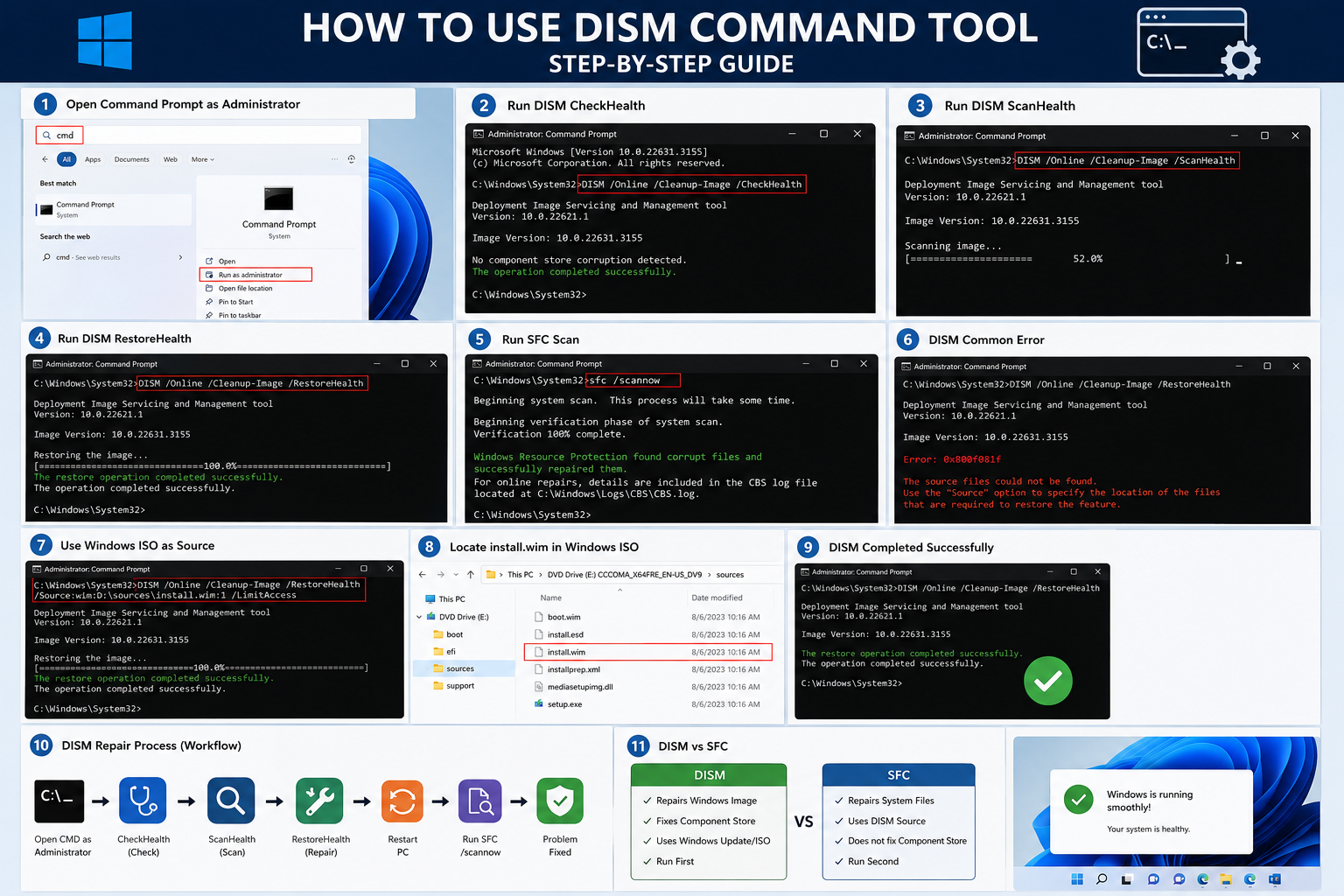
1. Check if Windows Image Is Corrupted
DISM /Online /Cleanup-Image /CheckHealth
What it does
- Checks whether corruption has already been detected.
- Completes in a few seconds.
- Does not repair anything.
2. Scan the Windows Image
DISM /Online /Cleanup-Image /ScanHealth
What it does
- Performs a deep scan.
- Detects hidden corruption.
- May take 10–20 minutes.
3. Repair Windows Image
DISM /Online /Cleanup-Image /RestoreHealth
What it does
- Downloads healthy files from Windows Update.
- Repairs corrupted Windows components.
- Restores the system image.
This process may take 15–30 minutes depending on your PC.
4. Run SFC After DISM
Once DISM finishes successfully, run:
sfc /scannow
This repairs individual Windows system files using the healthy image restored by DISM.
If you find difficulty, I’ve attached screenshot so that you can do without error.
Common DISM Commands
| Command | Purpose |
| CheckHealth | Checks for corruption |
| ScanHealth | Performs a detailed scan |
| RestoreHealth | Repairs Windows image |
| StartComponentCleanup | Removes old components |
| AnalyzeComponentStore | Shows component store size |
How Long Does DISM Take?
The repair time depends on your storage device and the level of corruption.
Typical times are:
- CheckHealth: Under 1 minute
- ScanHealth: 10–20 minutes
- RestoreHealth: 15–30 minutes
Do not close the Command Prompt while the repair is in progress.
DISM Common Errors and Solutions
Error: DISM Source Files Could Not Be Found
Use a Windows ISO file as the repair source.
Example:
DISM /Online /Cleanup-Image /RestoreHealth /Source:wim:D:\sources\install.wim:1 /LimitAccess
DISM Stuck at 62% or 84%
This is common. Wait for the process to complete before interrupting it.
Error 0x800f081f
Possible causes:
- Missing Windows Update files
- Incorrect repair source
- Damaged Windows image
Using the correct Windows installation media often resolves this issue.
DISM vs SFC
| DISM | SFC |
| Repairs Windows image | Repairs system files |
| Uses Windows Update or installation media | Uses Windows image |
| Run first | Run second |
For best results:
- Run DISM.
- Restart your PC.
- Run SFC.
Tips for Using DISM Successfully
- Always run Command Prompt as Administrator.
- Keep your PC connected to the internet.
- Avoid shutting down your computer during the repair.
- Restart Windows after completing the repair.
- Run SFC after DISM.
Frequently Asked Questions
Is DISM safe?
Yes. DISM is an official Microsoft utility included with Windows.
Does DISM delete files?
No. It repairs Windows system components without affecting your personal files.
Can I stop DISM while it is running?
It’s not recommended. Interrupting the repair may leave the Windows image in an inconsistent state.
Should I run DISM before SFC?
Yes. Running DISM first ensures that SFC has a healthy source to repair system files.
Conclusion
Knowing how to use DISM command tool can help you resolve many Windows issues without reinstalling the operating system. By running CheckHealth, ScanHealth, and RestoreHealth in the correct order, followed by SFC, you can repair corrupted Windows components and restore system stability.